
How to Set Up Brevo for Transactional Emails on WordPress Sites

Setting up Brevo for transactional emails on WordPress helps your website send essential messages, including password resets, order confirmations, contact form notifications, and account registration emails. The process involves creating a Brevo account, authenticating your sending domain, generating SMTP credentials or an API key, connecting Brevo to WordPress, and testing email delivery. This guide explains each step, including common configuration problems and how to troubleshoot them.
How to Set Up Brevo for Transactional Emails on WordPress Sites
If your WordPress website is not sending password reset links, contact form notifications, or order confirmation emails reliably, your email configuration may be the problem. WordPress uses PHP mail by default in many installations, and messages sent this way can encounter delivery problems depending on your hosting environment and email authentication setup.
Brevo provides an alternative by allowing your website to send transactional emails through its email delivery infrastructure. This guide explains how to set up Brevo for transactional emails on WordPress, from domain authentication to SMTP configuration and delivery testing.
You do not need to replace your existing business email address or move your entire email marketing operation to a different platform. The objective is to configure WordPress to send website-generated emails through Brevo.
Recommended read: Read our guide on how emails are set up >>
What Are Transactional Emails, and Why Use Brevo With WordPress?
Transactional emails are automated messages triggered by an action on your website. Unlike promotional emails, they usually contain information a user needs to complete a transaction, access an account, or receive a service.
Examples include:
Password reset and account verification emails.
WooCommerce order confirmations and payment notifications.
Contact form submissions and enquiry notifications.
New user registration emails.
Website administrator alerts.
Brevo can deliver these messages through authenticated SMTP or its transactional email API. SMTP is a standard method for applications to send email through an external mail server, while an API allows software to communicate directly with an email service through defined requests.
Using Brevo does not automatically fix every delivery problem. Your domain authentication, WordPress configuration, hosting environment, recipient address, and message content can all affect whether an email reaches its destination.
Step 1: Create a Brevo Account
First, create an account on Brevo if you do not already have one.
Visit the official Brevo website at brevo.com.
Register for an account and complete any required verification.
Sign in to your Brevo dashboard.
Locate the settings for transactional email or sending configuration.
Brevo’s dashboard layout and available features may change, so use the current interface to locate the relevant settings.
Before connecting WordPress, confirm that your account can access transactional email sending and that any required account verification has been completed. Do not proceed on the assumption that creating an account alone enables every sending feature.
Step 2: Authenticate Your Domain in Brevo
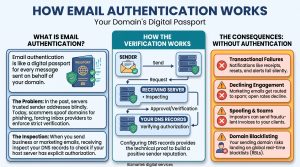
Domain authentication helps receiving email providers verify that Brevo is authorised to send messages on behalf of your domain. Without appropriate authentication, your emails may be rejected, filtered as spam, or treated as suspicious.
For example, if your website is example.com.ng, you should authenticate the domain you intend to use as the sender, such as [email protected].
Add your sending domain
Open the sender or domain authentication settings in Brevo.
Choose the option to add or authenticate a domain.
Enter your domain name.
Follow the instructions Brevo provides for DNS verification.
Open the DNS management panel for your domain, usually available through your domain registrar or DNS hosting provider.
Add the required DNS records exactly as provided by Brevo.
Return to Brevo and run the verification process.
Brevo may request records for SPF, DKIM, or other authentication mechanisms, depending on its current configuration and your domain setup.
Important: Do not blindly add a second SPF record if your domain already has one. A domain should generally have a single SPF policy that includes all authorised sending services. Conflicting SPF records can cause authentication failures.
If your business already sends email through Google Workspace, Microsoft 365, or another provider, preserve the existing email configuration and follow Brevo’s instructions for adding its sending authorisation.
DNS changes can take time to propagate. Wait for the records to become visible and repeat verification if Brevo does not recognise them immediately.
Step 3: Create or Verify Your Transactional Email Sender
A sender is the name and email address recipients see when they receive a message from your website. Using a professional address associated with your domain helps recipients recognise your business.
For example:
Sender name: Your Business Name
Sender email: [email protected]
In Brevo:
Open the sender management settings.
Add a sender using your business name and domain-based email address.
Complete any verification steps required by Brevo.
Confirm that the sender is available for transactional emails.
Use an address on a domain you own and have authenticated. Avoid using a personal Gmail or Yahoo address as your website’s sender identity.
Your sender address does not necessarily have to be the same as the address where you receive website enquiries. You can send notifications from one address while directing replies to your business inbox, provided your configuration supports it.
Brevo’s transactional email setup requires an authenticated domain and a configured sender before you begin sending messages. Read Brevo’s SMTP setup documentation.
Step 4: Connect Brevo to WordPress Using SMTP
WordPress needs a way to hand outgoing emails to Brevo. You can do this through Brevo’s official WordPress plugin or a separate SMTP plugin.
For a standard WordPress website, a mail plugin is often the most straightforward option because it lets you configure the mail connection without editing theme files.
Option A: Use the official Brevo WordPress plugin
This option is useful if you want to connect your website directly to Brevo and manage supported email functions through its plugin.
Log in to your WordPress dashboard.
Go to Plugins → Add New Plugin.
Search for the official Brevo plugin.
Install and activate it.
Follow the plugin’s instructions to connect your Brevo account.
Open the Brevo section in your WordPress dashboard.
Locate the transactional email settings.
Enable transactional emails and select your verified sender.
Send a test email using the available testing option.
Brevo’s official documentation describes enabling transactional emails from the plugin’s Home screen and selecting a sender. If transactional email is not activated for your account, you may need to contact Brevo support.
Option B: Use a dedicated SMTP plugin
Alternatively, use a WordPress SMTP plugin that supports custom SMTP connections. This can be useful if you want to manage outgoing website emails through one mail configuration, particularly when other plugins also generate notifications.
Install your chosen plugin from the WordPress plugin directory, then open its mail settings and select the option for a custom SMTP connection.
Enter the following details using your Brevo account’s current SMTP credentials:
SMTP setting | Value |
|---|---|
SMTP host | smtp-relay.brevo.com |
SMTP username | The SMTP login shown in Brevo |
SMTP password | Your Brevo SMTP key |
Port | 587 |
Encryption | Use the setting recommended by your plugin for port 587 |
Brevo also supports ports 2525 and 465, with SSL or TLS encryption required for port 465. Follow the connection requirements documented by Brevo and your chosen plugin.
Important: An SMTP key and an API key are different credentials. If you are configuring an SMTP connection, use the SMTP key, not your general Brevo API key.
Where to find your Brevo SMTP credentials
Sign in to Brevo.
Open the settings for SMTP and API.
Locate the SMTP section.
Copy the displayed SMTP login.
Generate an SMTP key if you do not already have one.
Enter the credentials into your WordPress mail plugin.
Keep your SMTP key private. Do not publish it in website content, screenshots, public repositories, or client-facing documentation.
If you choose a plugin that connects to Brevo through its API instead of SMTP, follow that plugin’s API connection instructions. Do not enter SMTP credentials into API fields or assume the two connection methods use identical settings.
Step 5: Configure the WordPress Sender Address
After connecting Brevo, configure WordPress to use the sender address you verified. This helps ensure that website-generated messages use a consistent, recognisable identity.
In your mail plugin, check these settings:
From Email: The verified sender address, such as [email protected].
From Name: Your business name.
Force From Email: Enable this option if appropriate to prevent other plugins from overriding the configured sender.
Reply-To: Set your business inbox if you want recipients to reply to a monitored address.
The exact settings depend on your mail plugin. Some plugins also allow you to configure which WordPress messages use the SMTP connection.
For a WooCommerce store, test order notifications separately. For a business website, test contact forms, registration emails, and password resets. Connecting SMTP does not automatically guarantee that every plugin is configured correctly.
Step 6: Test WordPress Transactional Email Delivery
Do not assume your configuration works simply because the plugin reports a successful connection. Send actual test messages and confirm that they arrive.
Follow this checklist:
Send a test email from your SMTP plugin or the Brevo plugin.
Check the recipient’s inbox and spam folder.
Confirm that the sender name and email address are correct.
Verify that the message content displays properly.
Check Brevo’s transactional email logs for the sending status.
Trigger a real WordPress action, such as a password reset or contact form submission.
If you use WooCommerce, test an order notification in an appropriate test environment.
Test with different recipient providers where possible, including Gmail and Outlook. A message reaching one inbox does not establish that every recipient provider will accept it.
Brevo’s transactional logs can help you distinguish between a message that was accepted for sending, delivered to the recipient’s mail server, bounced, or otherwise failed. Delivery status does not necessarily mean the message reached the recipient’s primary inbox.
Common Brevo and WordPress Email Problems
Troubleshoot standard delivery, configuration, and DNS setup issues between Brevo and WordPress.
| Problem | Likely cause | What to check |
|---|---|---|
| SMTP authentication failed | Incorrect credentials | Confirm the SMTP login and SMTP key. |
| Domain authentication fails | Missing or incorrect DNS records | Compare published DNS records with Brevo's instructions. |
| Test email succeeds but contact forms fail | Form plugin configuration or integration issue | Test the form plugin and its notification settings. |
| Emails arrive in spam | Authentication, sender reputation, or message issues | Review domain authentication and sending practices. |
| WooCommerce emails are missing | Notification settings or another plugin conflict | Check WooCommerce email settings and logs. |
| Transactional sending is unavailable | Account activation or sending restrictions | Check Brevo's account status and contact support if necessary. |
DNS changes can take up to 48 hours to propagate, so allow time for verification before repeatedly changing records.
If emails still fail, review the WordPress mail plugin’s error logs and Brevo’s transactional logs. Avoid installing multiple plugins that compete to control the same SMTP connection unless you understand how their configurations interact.
Does Setting Up Brevo for Transactional Emails Affect Email Marketing?
Transactional email and email marketing serve different purposes, even when they use the same provider.
Transactional emails deliver messages triggered by specific website actions. Email marketing campaigns distribute newsletters, promotions, product updates, and other marketing content to appropriate subscribers.
Brevo can support both functions, but configuring WordPress SMTP does not automatically set up your marketing lists, subscription forms, campaign templates, or automations.
If you want to develop a broader email strategy, read our complete guide to email marketing. It covers the wider role email can play in communicating with customers and supporting business growth.
Frequently Asked Questions
Is Brevo free to use for WordPress transactional emails?
Brevo offers different account plans and sending allowances, which may change. Check its current pricing and transactional email limits before choosing a plan for your website.
Do I need a separate SMTP plugin if I install the Brevo WordPress plugin?
Not necessarily. The official Brevo plugin can handle supported transactional email functions. A separate SMTP plugin is an alternative when you prefer a custom SMTP connection or need a different mail configuration. Avoid unnecessary overlapping configurations.
Will Brevo send WooCommerce order confirmation emails?
Yes, provided WooCommerce is configured to generate the relevant notifications and your WordPress integration successfully routes them through Brevo. Test order emails after setup.
Can I use Brevo without changing my business email provider?
Yes. You can continue receiving email through your existing business email provider while using Brevo to send website-generated messages. Configure the DNS records and sender settings carefully to avoid disrupting existing email services.
Why are WordPress emails still going to spam after setup?
Authentication improves the legitimacy of your messages but does not guarantee inbox placement. Check your domain authentication, sender alignment, message content, sending reputation, and Brevo’s delivery logs.
Conclusion
Setting up Brevo for transactional emails on WordPress involves authenticating your sending domain, verifying a sender, connecting your website through the official plugin or SMTP, and testing the messages your website generates.
The most important part is verifying the complete process. A successful SMTP connection is only one step; your password resets, contact forms, account notifications, and order emails must also work as expected.
Need Help With Your Website's Email Setup?
Explore our email marketing services for support with email configuration, campaign setup, and customer communication workflows.
Get Started With Us ↗Free to start • No credit card required

Explore EMAIL MARKETING Mastery

Marketing & Lead Nurturing Emails: How to Convert Leads into Loyal Customers

Best Transactional Email Platform for WordPress Sites

Transactional Email: Its Role in Email Marketing
How to Set Up SPF, DKIM and DMARC for WordPress Sites Using cPanel
View More EMAIL MARKETING Articles (9 more)

Email Authentication: Complete DNS Setup Guide for Better Delivery

How Emails Are Sent: A Simple Guide to Email Delivery

How to Start Email Marketing in Nigeria

How to Recover Abandoned Carts in Nigeria 2026

10 Best Email Marketing Software in Nigeria Today

Email Marketing Services for E-commerce Brands in Nigeria

Email Marketing Automation for Real Estate Firms in Nigeria

Types of Emails for Your Email marketing
